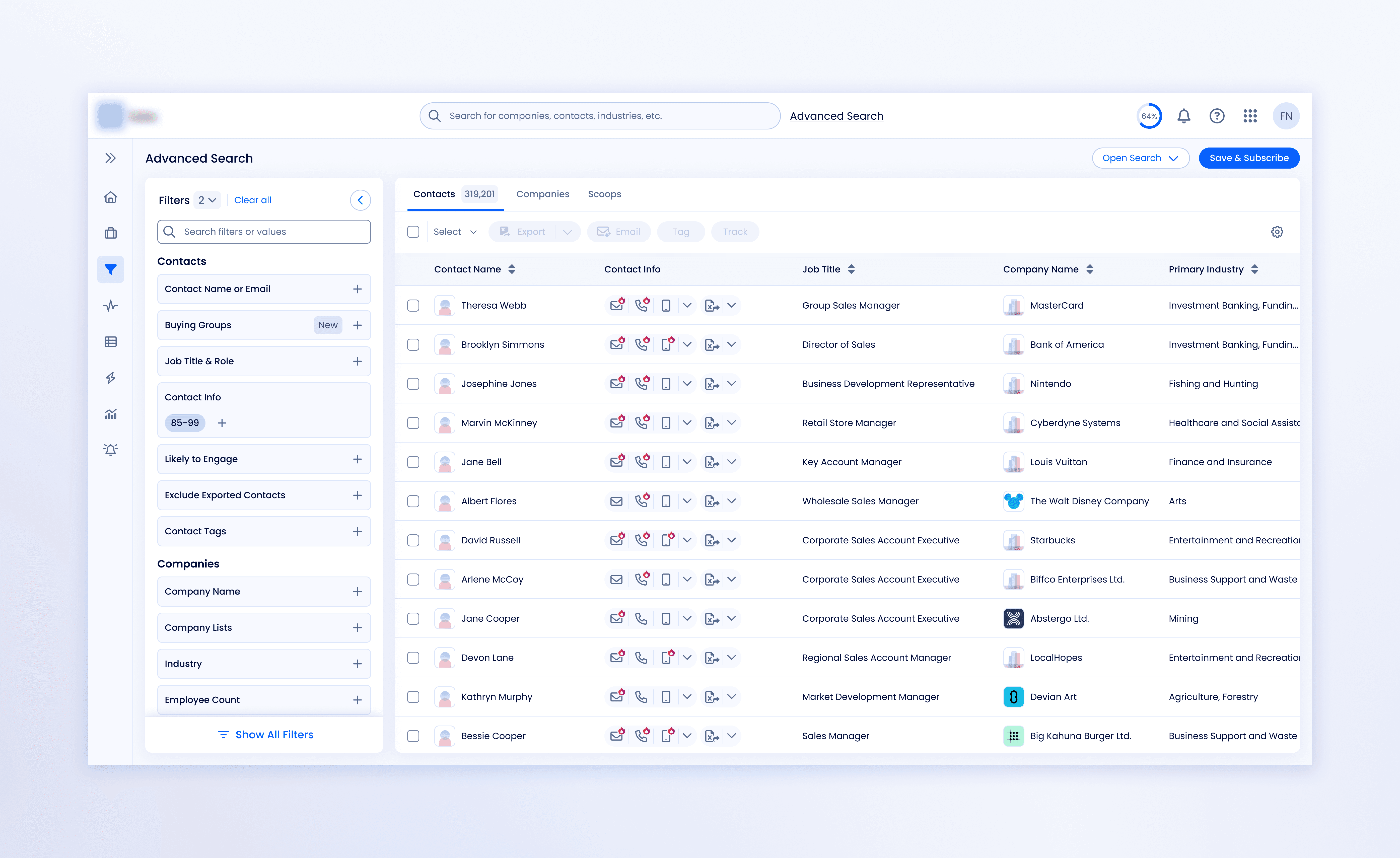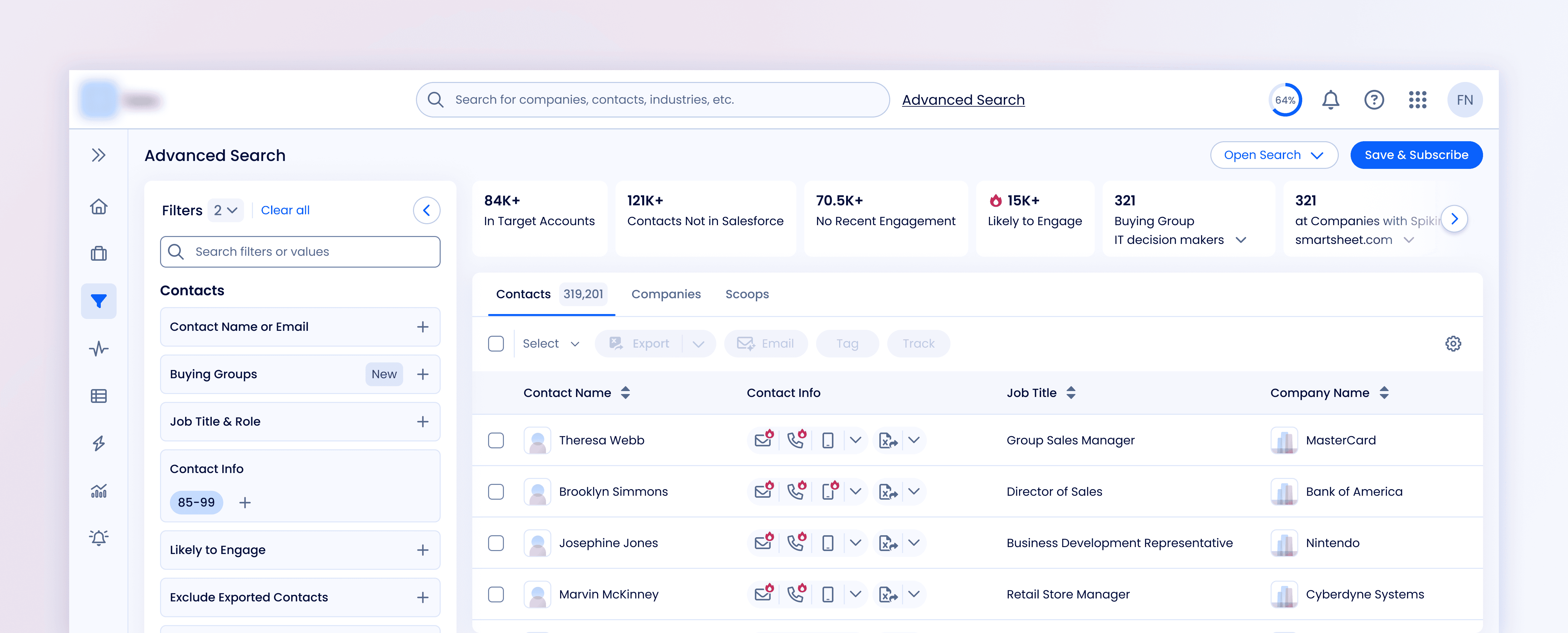
High value data signals were hard to access
As more data signals became available, like intent, account fit, and engagement likelihood, there was an opportunity to make these signals easier to access during lead discovery.
The existing filter panel offered strong flexibility, but some user workflows called for a faster, more lightweight way to apply commonly used filters.
Our high level goals were to:
Enable one-click access to high value filters
Fit seamlessly within the existing search interface
Support common sales workflows
Create a scalable pattern for future data signals
Owned UX and UI for the Quick Filters feature
I designed the Quick Filters feature, owning UX and UI from concept to Figma handoff. I collaborated with PMs and engineers to define behavior, improve discoverability, and ensure alignment with broader search workflows
My Contributions
Defined UX flow and interaction logic
Ran user testing and applied insights to improve usability
Designed layout and interaction in Figma
Documented edge cases and specs for dev handoff
Focused on one click filters for common workflows
We treated this as a focused UX addition to the existing search experience. The work included defining user scenarios, mapping filter behavior, and validating interaction patterns through lightweight internal testing.
Quick Filters was scoped as a lightweight, one click solution for common prospecting tasks.
We mapped key user outcomes alongside the system’s functional scope to ensure the feature stayed focused, scalable, and intuitive. The layout below captures the dual lens: what users get, and what was required to make it work.
User Outcomes
Faster Prospecting
High-Fit Lead Targeting
One-Click Efficiency
Intent-Based Targeting
Reusable Search Logic
Prioritized Results
Scope & Constraints
One-click Filters Above Search
Supports Multiple Filter Types
Works in Contact & Company View
Combine Filters (AND Logic) |
Entitlement-Based Visibility
Scalable Design
Established layout and selection rules
We explored how Quick Filters should look, behave, and scale within the search results UI. Since filters needed to work across multiple tabs and user types, we ran fast, structured iterations on tile layout, labeling, and selection logic to strike the right balance of clarity, hierarchy, and space efficiency.

Tested fixed-width vs. content-hugging tiles to explore visual rhythm and adaptability to long labels
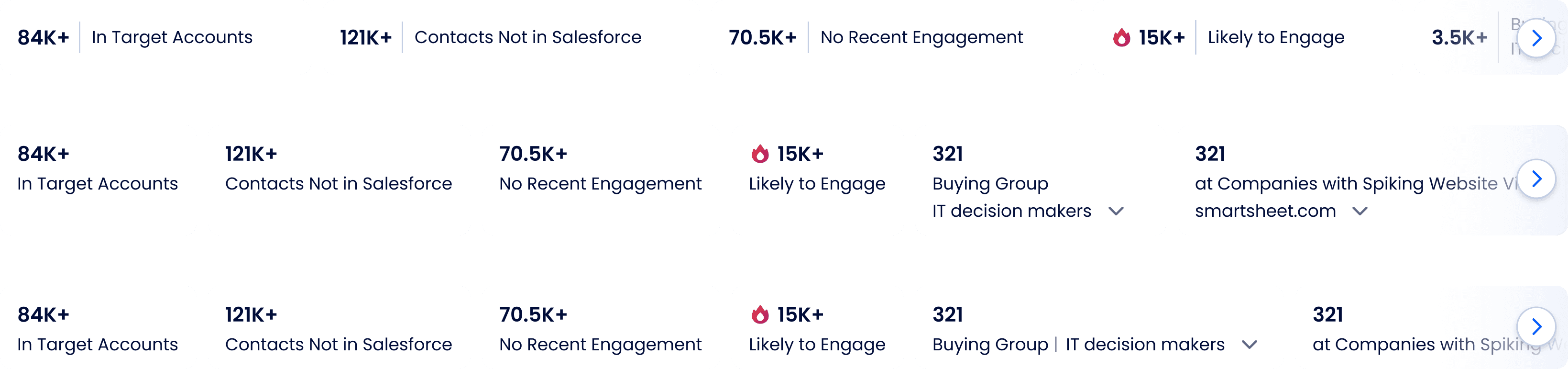
Tested inline vs. stacked layout for label + count. Inline reduced height, stacked improved clarity for longer names.

Explored adding a "Quick Filters" header to separate this section visually, but later removed it to reduce vertical space usage

Selected filter exploration
Final Behavior
To ensure users received clear feedback when interacting with filters, we defined distinct visual styles for default, hover, and selected states. These helped reinforce clickability, selection confirmation, and accessibility, especially for users navigating via keyboard or scanning quickly.
The final design needed to support a wide variety of filters, from passive indicators to fully interactive elements. We created a flexible system that handled tooltips, dropdowns, and “Set up” actions, while keeping visual consistency and minimizing visual noise.

Final design supports multiple tile types — including dropdowns and setup-driven actions — within a unified visual system
Users preferred visible, always accessible filters
To validate the Quick Filters experience, we tested the design with active users of Advanced Search. The goal was to observe how users interact with filters in real workflows and surface any usability issues before release.
Feedback confirmed that the design felt lightweight and intuitive. Users understood that filters impacted both contacts and companies, and most completed their tasks smoothly.
Several users voiced a clear preference for keeping all filters in view, even if that required horizontal scrolling. Hiding filters, whether in tabs or overflow menus, led to hesitation and confusion.
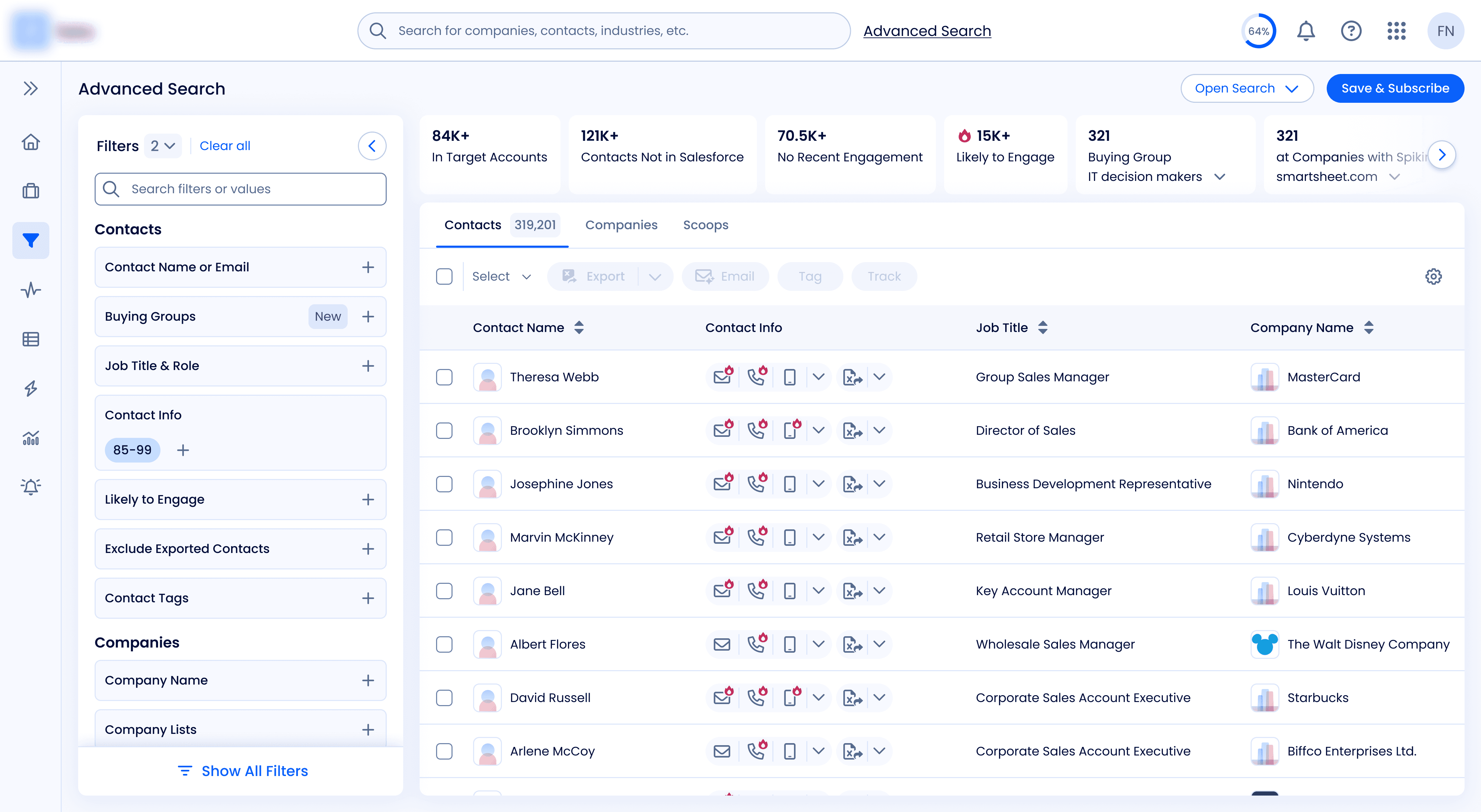
Final design
Clear visibility reduced friction and guides next iterations
The final design, with all quick filters visible, proved to be both effective and intuitive. By avoiding hidden filters and reducing UI complexity, we supported faster decision making and minimized user friction. This phase of testing validated our approach, but it also surfaced new opportunities. As usage grows, we’ll monitor how users interact with filters to better understand what’s most valuable.