Filter overload reduced search quality
Led end to end UX for a complex filter redesign
UX strategy & UI design for the filter panel redesign, driving both strategy and execution. I collaborated closely with PMs and engineers to align workflows, resolve edge cases, and support both new and power users.
Legacy filter design created structural friction
Before launching into a redesign, we needed to understand what was broken. We analyzed usage data, gathered feedback from Sales, Support, user interviews and internal stakeholders, and reviewed patterns across key user segments: SDRs, AEs, AMs, Admins, and new vs. power users, spanning SMB to Enterprise tiers.
Combined with competitive analysis a clear picture emerged:
The legacy filter experience wasn’t just cluttered, it was structurally flawed.
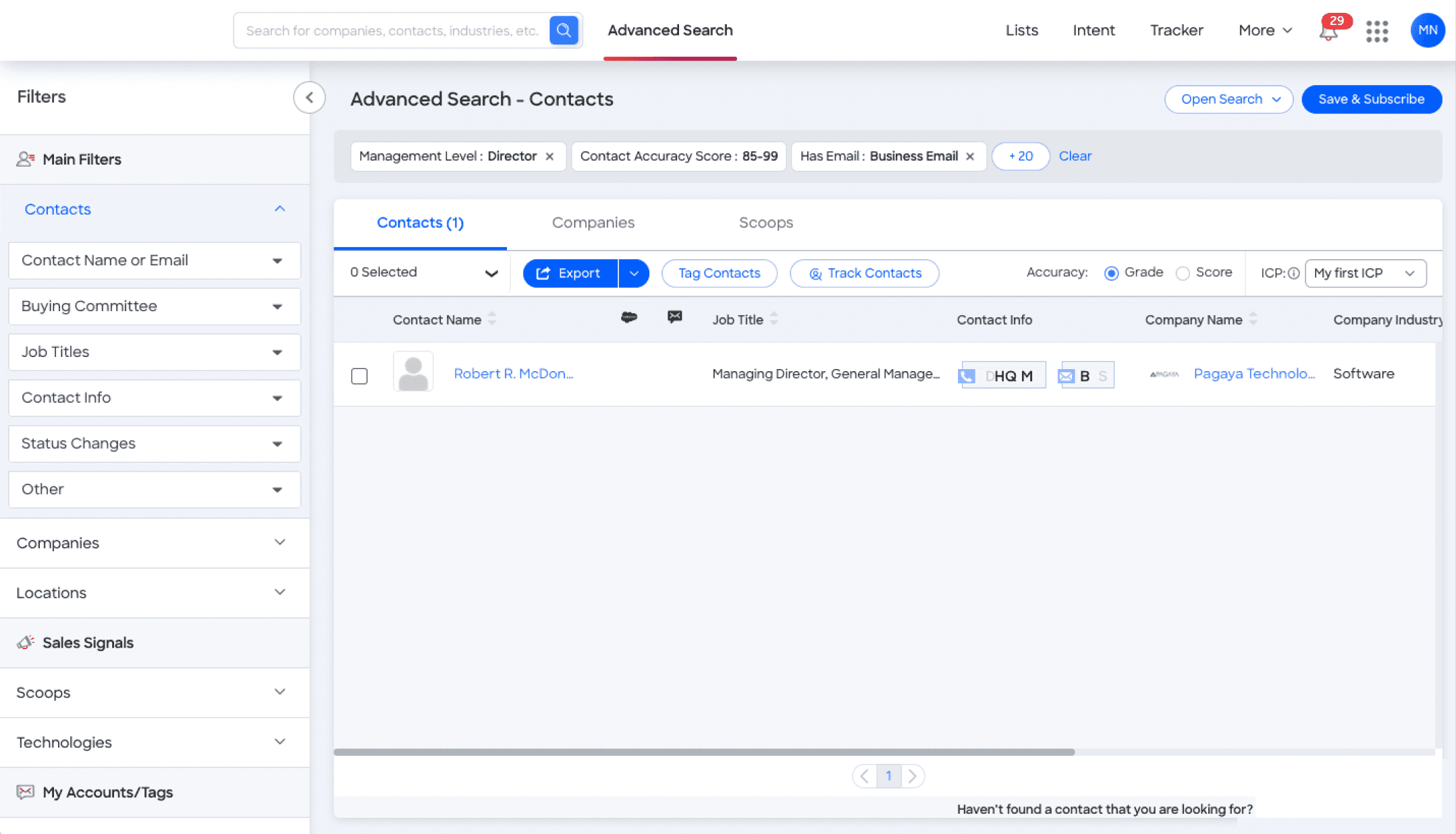
Legacy version of the filter panel
Cluttered, No Prioritization
The panel overwhelmed users with too many filters creating cognitive overload
Poor Filter Findability
Key filters are hidden under vague labels like “Other” and hard to find without search
No Customization
Users couldn’t personalize the panel or tailor it to their use cases
Reframed filters for flexibility and control
What if filters behaved more like building blocks, easy to surface, combine, and personalize?
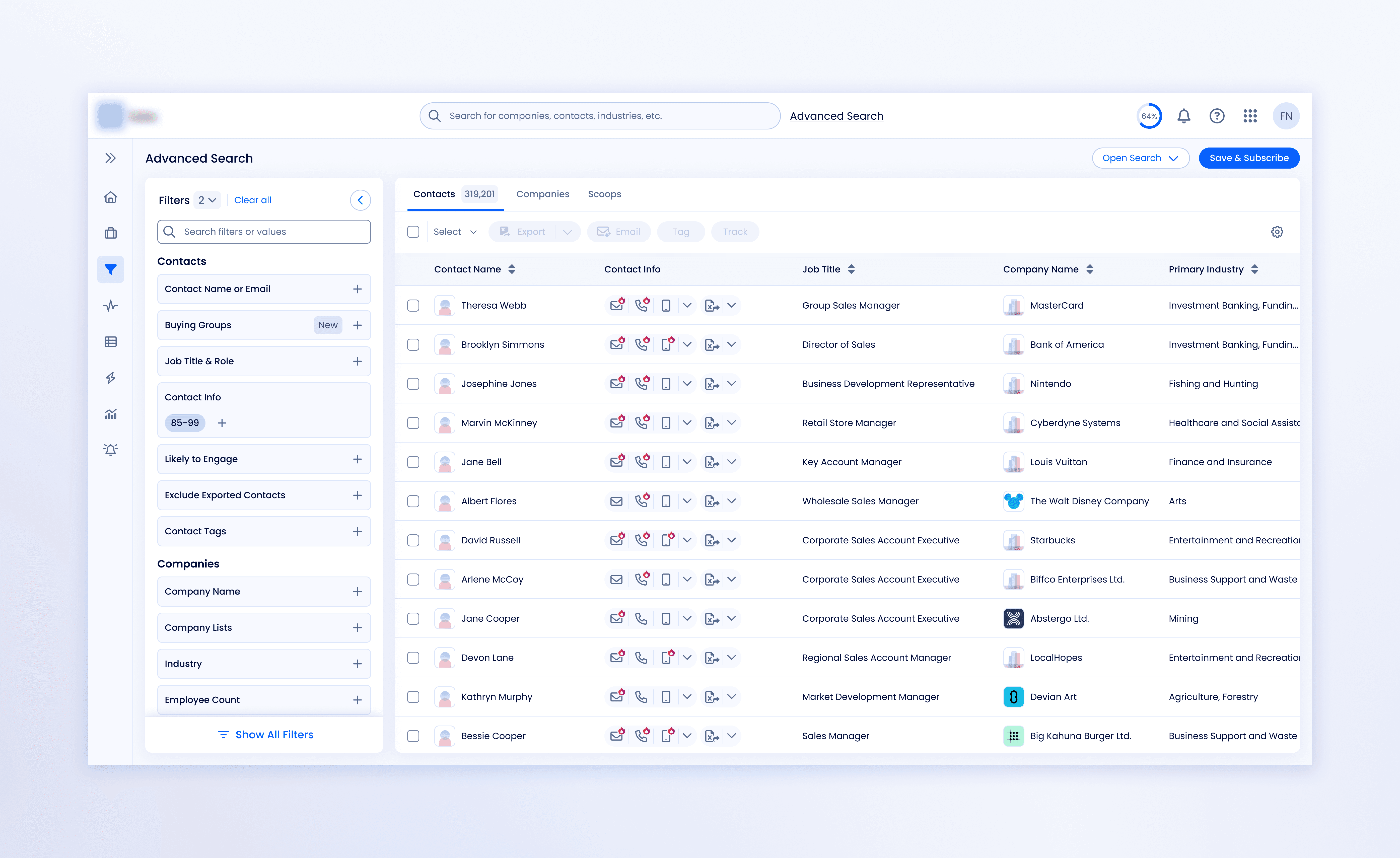
We redesigned the filter experience to better balance simplicity and flexibility. Instead of showing every filter by default, we started with a more focused set, based on usage data and relevance, so the panel felt cleaner and less overwhelming. For users who needed more options, we added an expanded view that surfaced the full list of filters without cluttering the main interface.
To support different workflows, we introduced the ability to pin filters. Users could choose the filters they used most from an expanded filter panel view to keep them visible in the default view. This gave people more control over their workspace without requiring any complex settings.
Iterated toward scalable, system compliant solutions
While we had clear principles in place, translating them into usable patterns was far from straightforward.
We were designing within a highly structured enterprise design system, where every new interaction had to align with established tokens, accessibility guidelines, and behavioral standards. Any proposed component needed to be evaluated, tested, and approved across the system, a process that shaped both what we could design and how we shipped it.
I partnered closely with developers and system leads to find creative, feasible solutions that honored the design intent while working within technical and organizational constraints.
Within that framework, I explored dozens of layout and interaction variations, ultimately focusing on solutions that balanced clarity, control, and usability. Examples below reflect the final iteration shifts for the default and expanded states, each informed by real user feedback and A/B testing.
Filter Panel Refinement #1 (L→R: Collapsed → Default → Expanded)
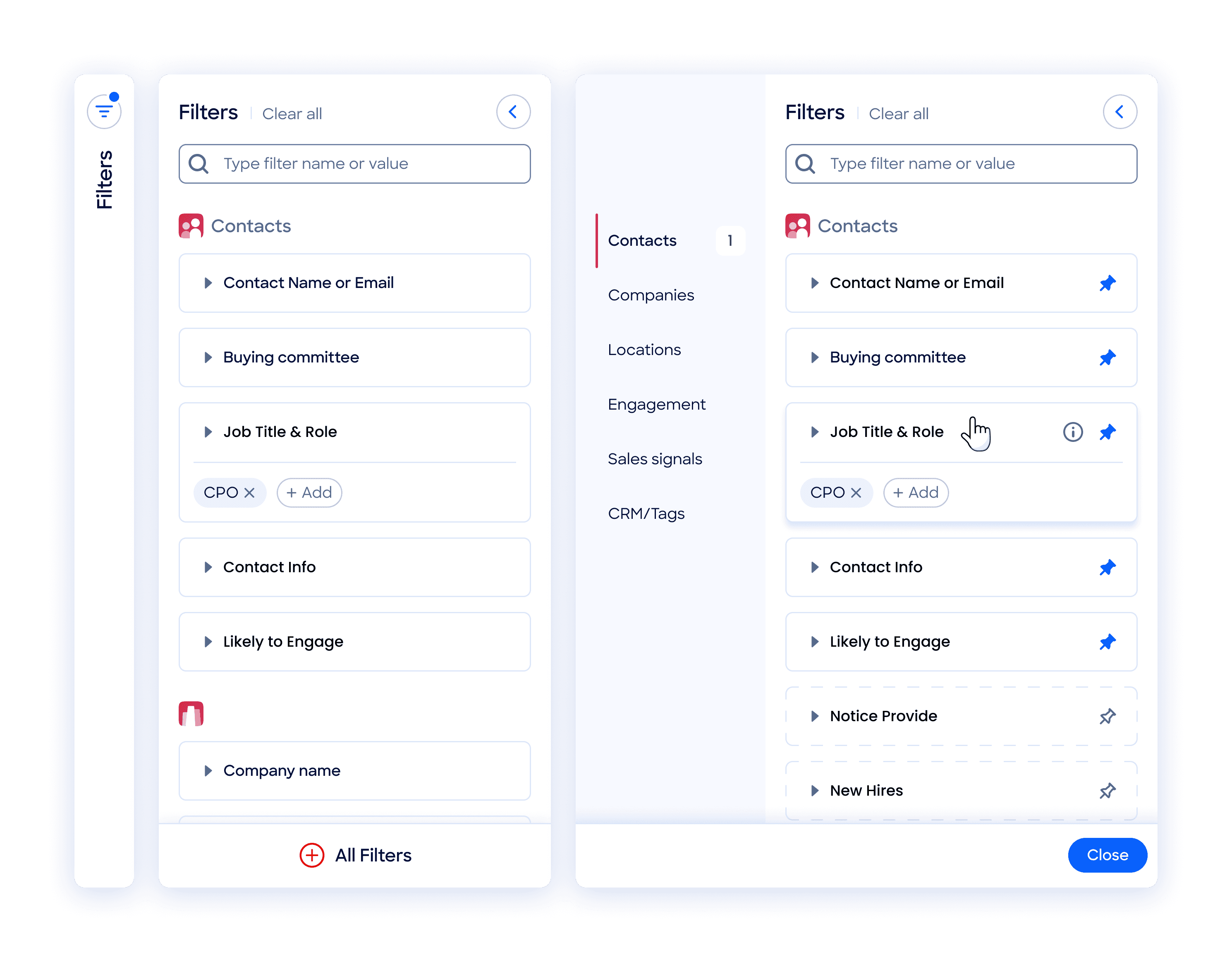
Design iteration exploring left chevrons for expand/collapse, but they split controls and slowed scan. Always-visible unpinned icons caused visual overload. “All Filters” still lacked clarity.
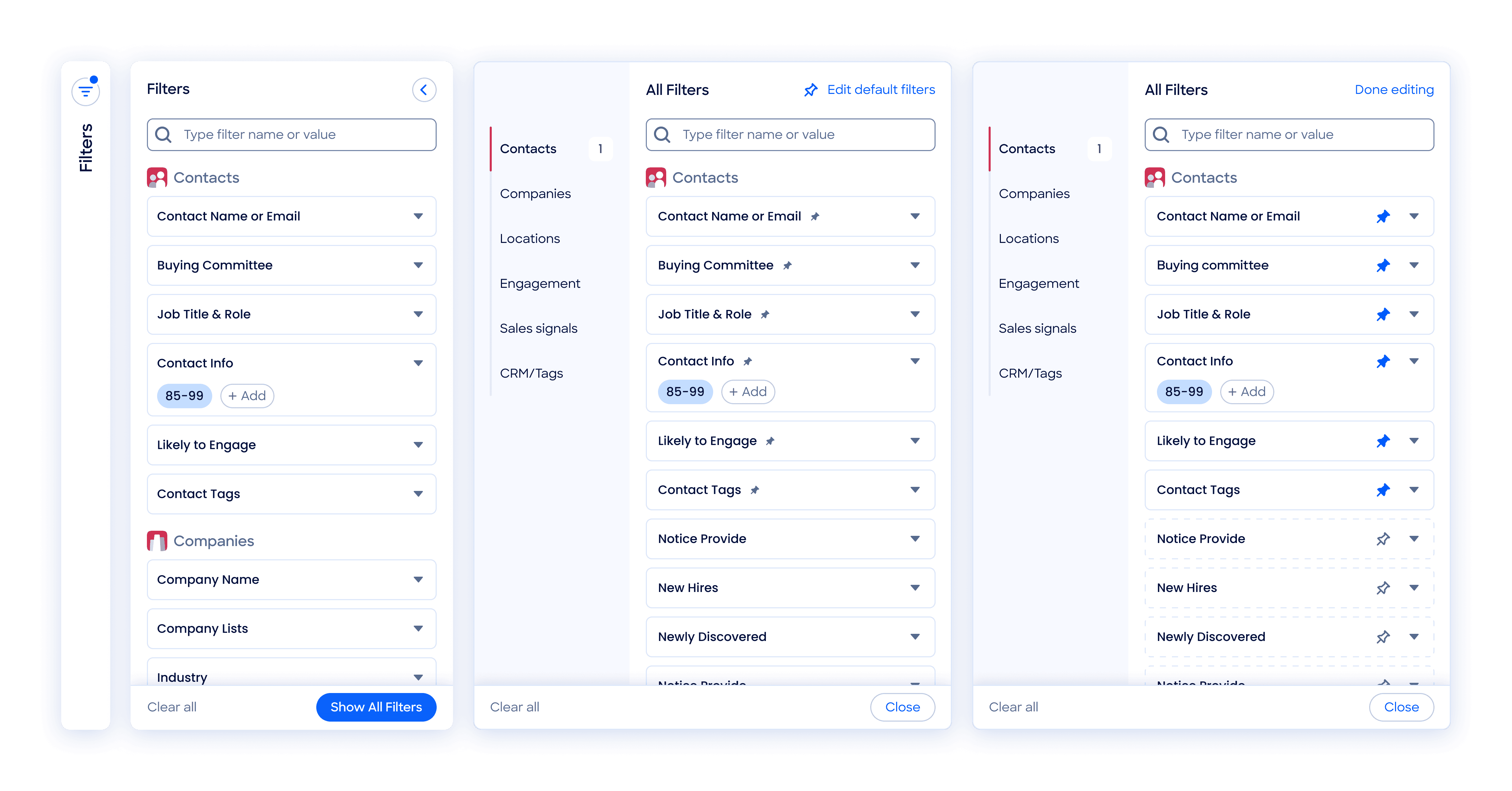
Design iteration exploring right chevrons for grouping, but they reduced expand clarity. Intermediate pin state caused ambiguity. “Clear all” lacked visibility.
Filter Panel Refinement #3(L→R: Collapsed → Default → Expanded)
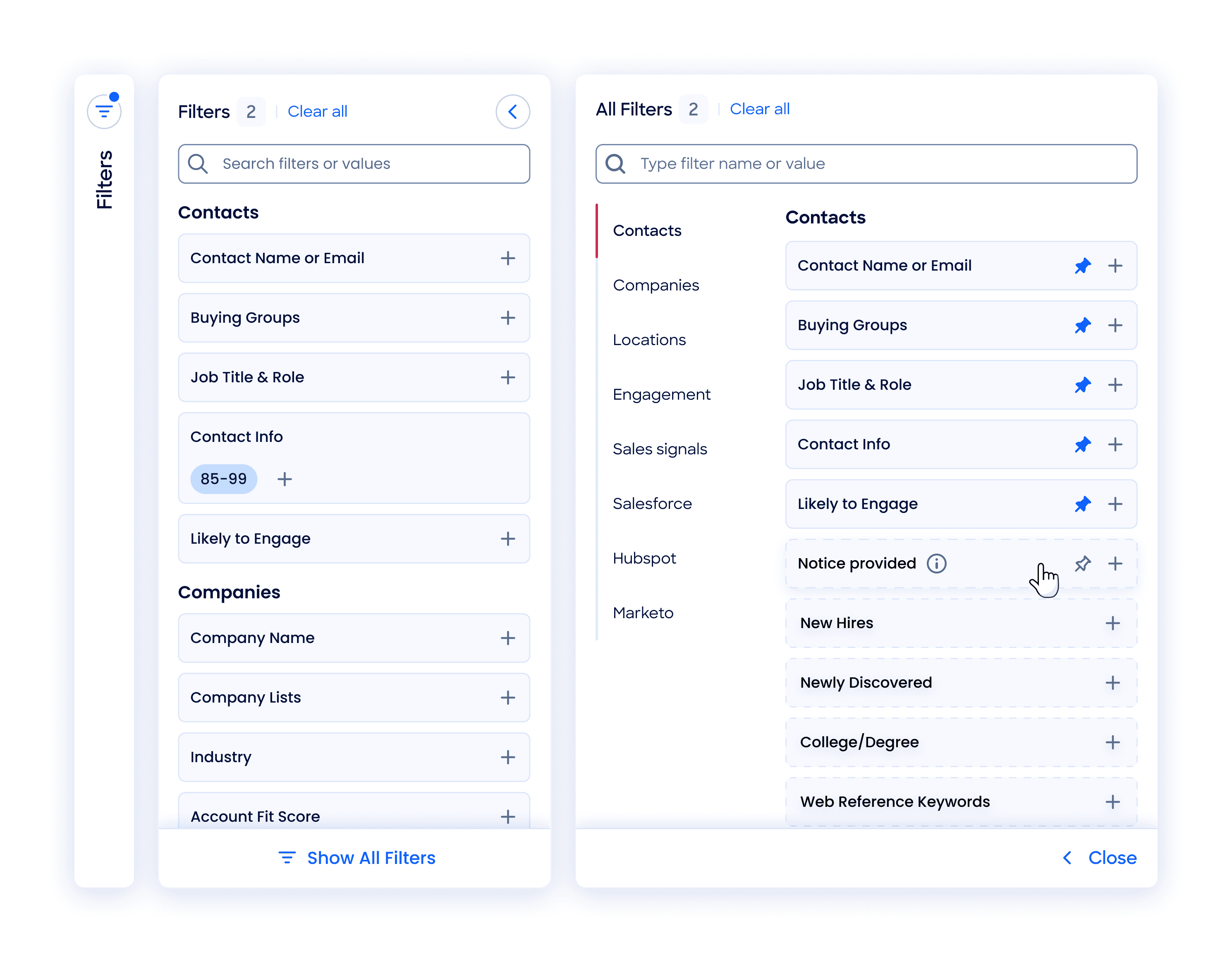
Design iteration exploring reduced height, blue BG for separation, and hover-only unpin icons to cut noise. Plus icon gave clearer expand action.
Mapping the Full Experience Landscape
While the primary filter panel design was critical, much of the complexity lived in edge cases, filter logic, and layout behavior. Every filter, collapsed or expanded, with or without chips, had to work predictably across a wide range of scenarios.
We accounted for:
• Tooltip and hover states
• Scrollable filter groups
• Dependent filters and exclusions
• Overflow chips with a two-row cap and “+ more” summary
• Panel behavior when filters are removed or pinned
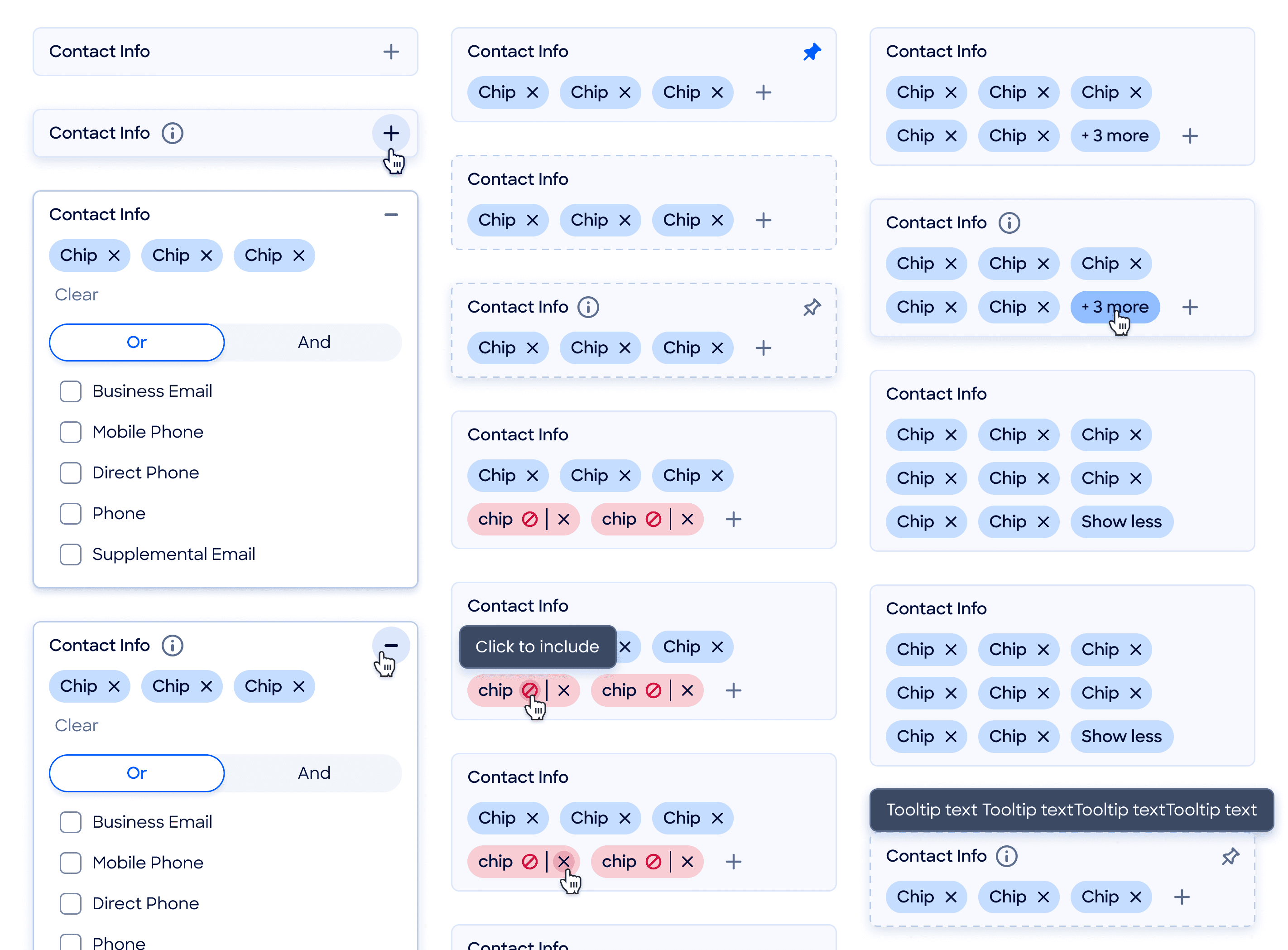
Image shows a small sample of the complexity across states, chips, and interactions
Designing for Transition & Feedback
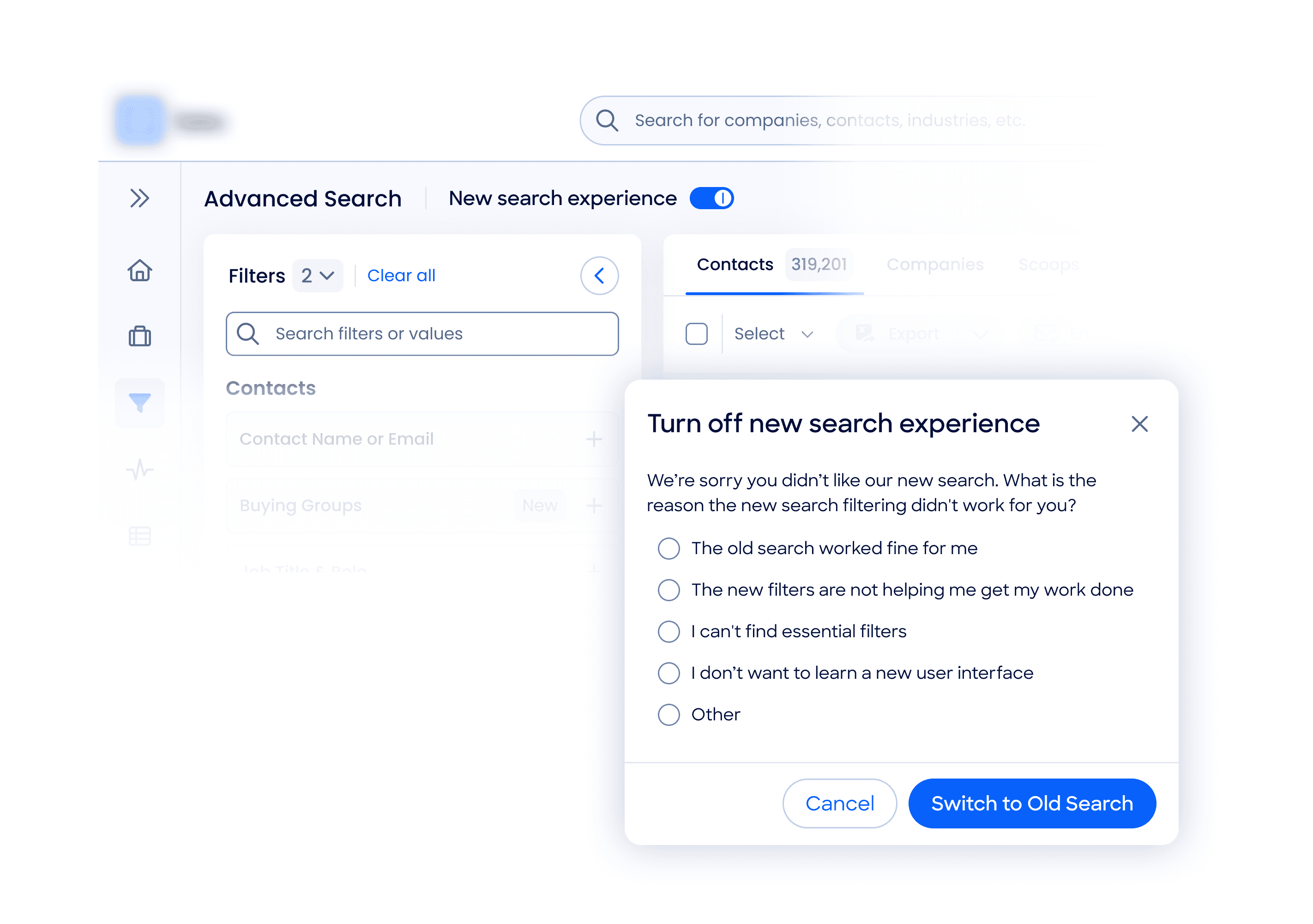
Toggle-off flow with in-context survey offered users flexibility while surfacing high-signal feedback
Data-Driven Default Filter Selection
As we approached beta, we analyzed 9.1 million filtered searches from 337,708 users over a 12-month period, combining this data with user interviews, observed behaviors, and core use cases (e.g., account penetration, executive outreach). These combined insights informed our decision on which filters to surface by default, balancing usage with broader strategic priorities.
Management Level (72%)
Location (70.8%)
Territory-based outreach
Industry (64.3%)
Tailor messaging by company type
Job Function (59.6%)
Persona-based targeting
Contact Name (48.7%)
Lookup known individuals directly
Employee Count (30.1%)
Qualify leads by company size
Buying Groups (6.1%)
Account-based multi-contact
Partial list shown — selected using usage data + strategic value
User feedback confirmed the core interaction model
We moved into phased beta testing with Refinement 3. Testing rolled out in three phases: internal beta (~100 users) for early feedback, champion user beta (~300 users) for deeper usability insights, and a wider beta (~500 users) for final refinements.
What worked well
We observed how users navigated the redesigned filter panel across real workflows. Several core ideas landed well. Pinning filters quickly became a favorite, giving users more control over their experience with minimal friction. The addition of a search bar dramatically improved filter discoverability, especially in more complex accounts. And overall, the new layout felt more approachable, especially for newer users.
New Insights
At the same time, feedback surfaced areas that needed more refinement. A number of users said they missed the summary of selected filters that was present in the old panel. Without it, some felt disoriente, unsure what was currently applied. Others felt the search results were too noisy.
What this taught us
Validated Ideas
Personalization improves efficiency
Search boosts navigation speed
New Research Questions
How do I surface filter summaries?
How to aid search disambiguation?
Addressing Beta Feedback 1: Search
So how to aid search disambiguation? especially when filters returned near-duplicate values like “Sales” across different departments. We introduced several refinements:
Change
User Benefit
Addressing Beta Feedback 2: Summary Chips
Another recurring theme was the lack of a quick way to see what filters were currently applied. The legacy panel had shown selected filters in a persistent top summary above the results table (disconnected from the filter panel), and many users relied on that for orientation.
During the beta release, early users noted that the filter panel lacked a quick way to check which filters were currently active. To address this, I designed a filter summary directly in the panel header.
Iteration 1# (L→R: Default→ Hover→ Active)
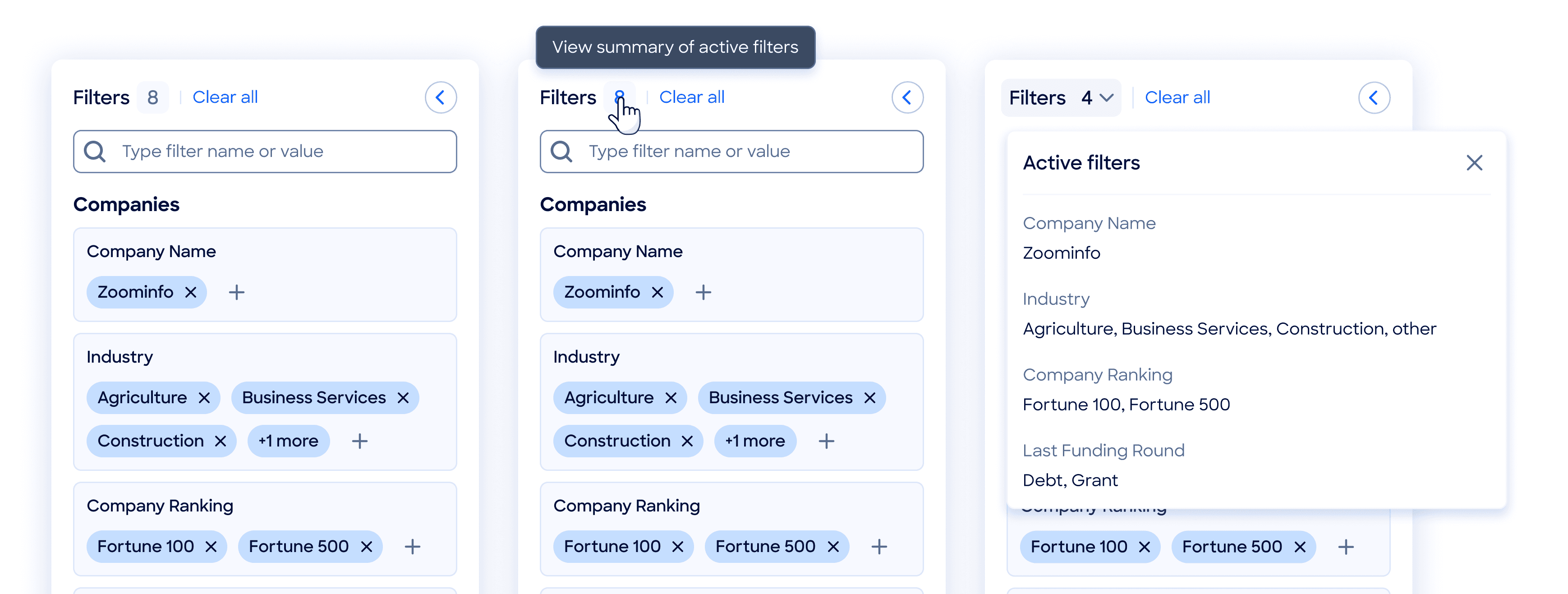
Iteration 1 introduced a clickable filter count next to the “Filters” label. Clicking revealed an overlay listing all active filters and their values in a read-only format
Quick internal usability checks showed that the hover color cue alone lacked sufficient affordance for clickability. Feedback also highlighted that immediate filter removal from the summary was highly valued for speed and convenience. Although I was initially cautious about making the summary’s chips actionable due to functional duplication with the main filter panel, the usefulness and stakeholder requirements ultimately outweighed these concerns.
Iteration 2# (L→R: Default→ Hover→ Active)
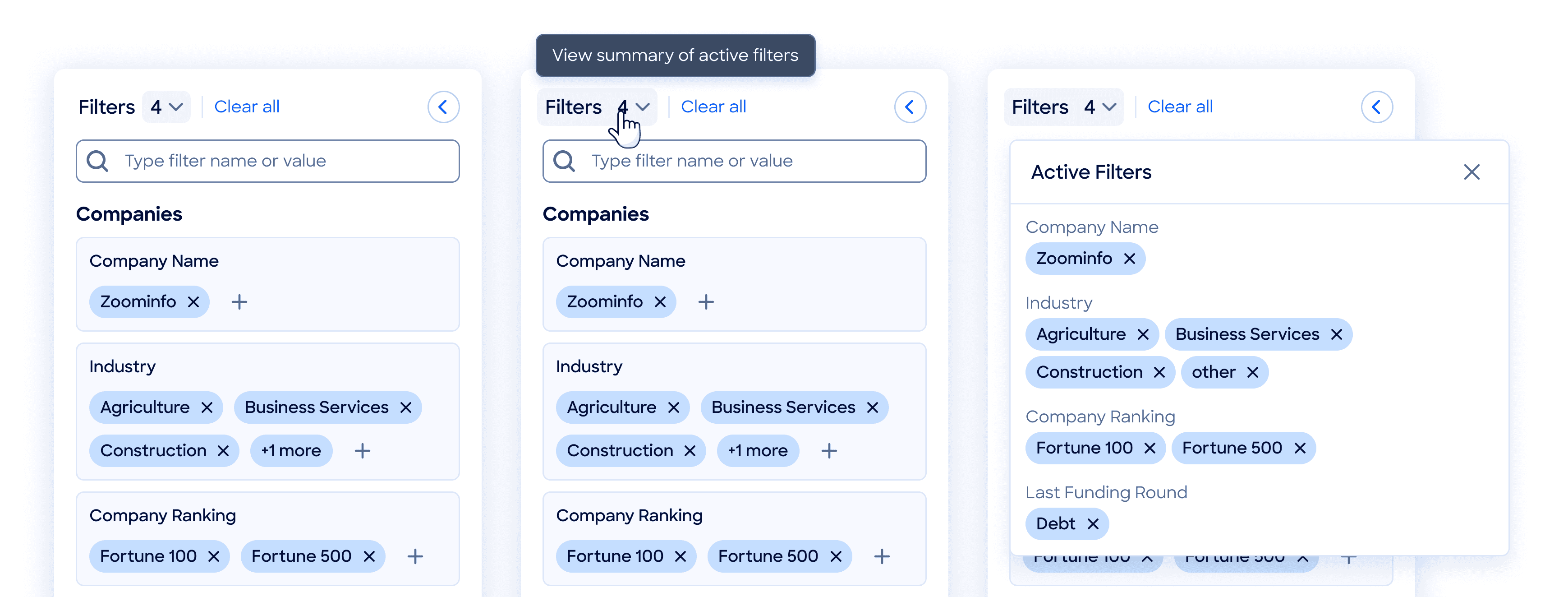
Iteration 2 added a dropdown icon next to the filter count to improve affordance and replaced the static filter list with interactive chips featuring dismiss (×) actions for quick inline removal.
Iteration 2 improved the discoverability of the filter summary feature and enabled faster filter management by allowing users to remove filters directly from the summary. These changes streamlined adjustments without requiring users to navigate through the full filter list.
Productionized a major filter system overhaul
After extensive iterations and a successful beta rollout, we officially launched the redesigned filter panel, the most significant overhaul since its original release as part of the platform’s GA release.
I collaborated closely with product managers and engineers throughout the development phase, leading multiple bug-bashing and QA sessions to ensure design fidelity and usability. I also supported the implementation by providing detailed handoff files via Figma, including specs, redlines, and annotations, to streamline development.
Measurable gains in search performance
Balancing simplicity and flexibility drives adoption
This project emphasized the value of clarity and thoughtful prioritization in UX. Making filters more accessible led to noticeably higher engagement with search tools, especially through the redesigned “Show More Filters” and search bar. While adoption of pinning was more gradual, usage trends suggest it's becoming a valuable tool for advanced users. Designing for both simplicity and flexibility helped support a wide range of user behaviors, and the results reinforced the importance of balancing those needs throughout the flow.
Working within a large, multi-stakeholder environment sometimes meant slower alignment or more layered decision-making, but that process also helped surface stronger ideas and led to more durable, well-rounded solutions.